
How to Play
Table of Contents
1. Start a Story
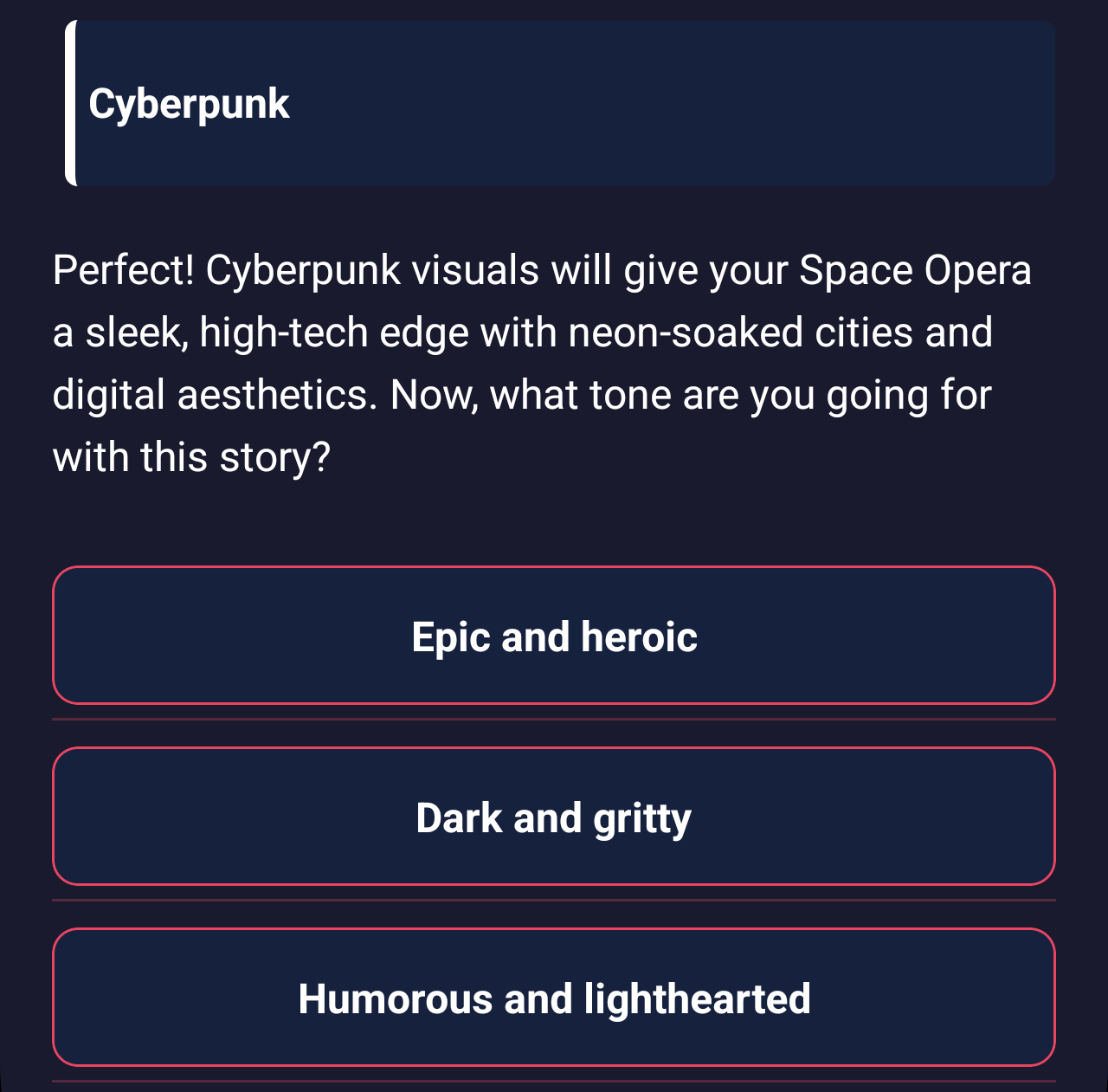
Follow the prompts to create the genre, visual style, tone, setting, and premise of your story.
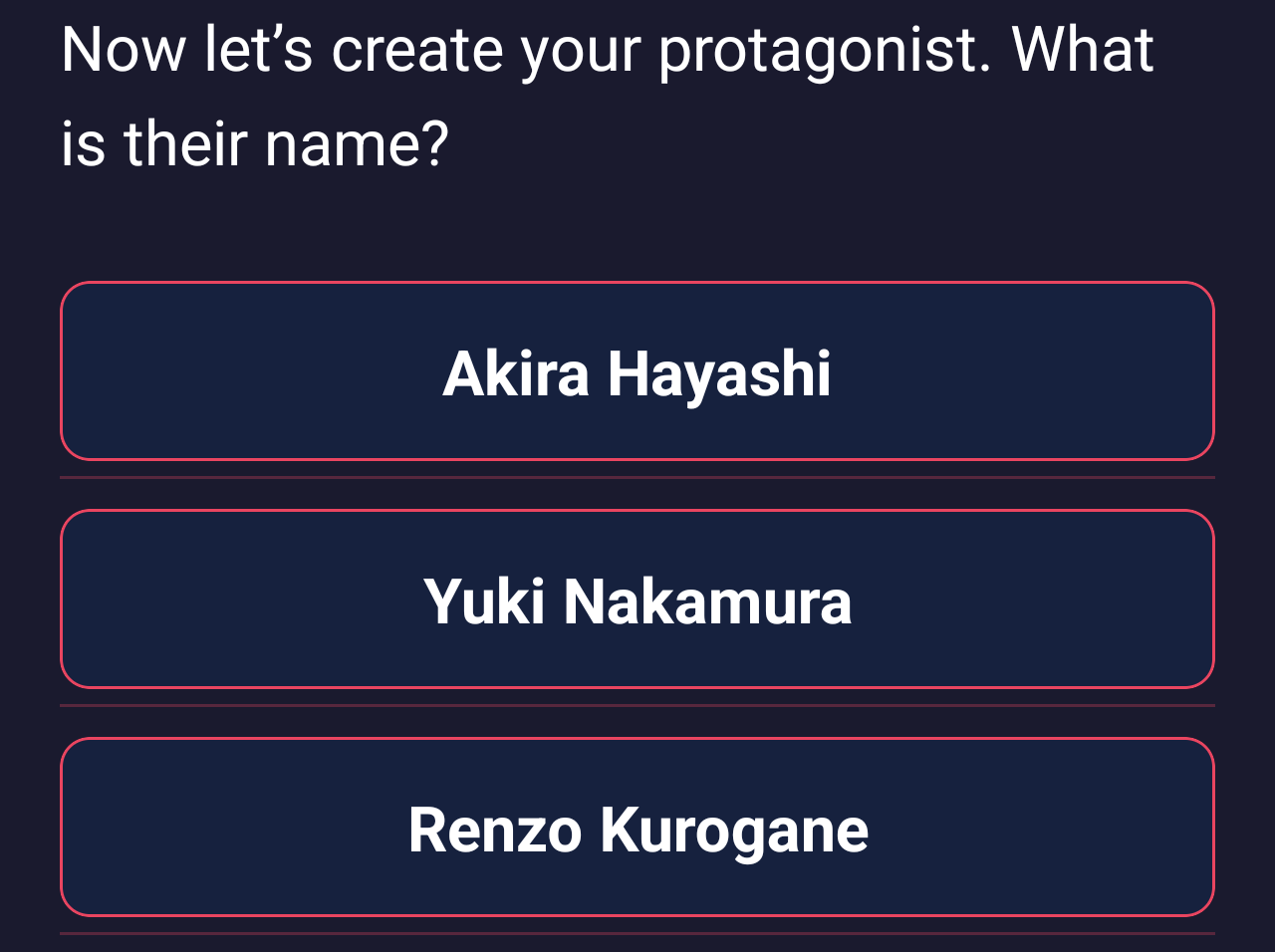
Once that's complete, create your character; their name, age, occupation, driver, trouble, skills and weaknesses all combine to make your personal avatar into the story.
If at any point you'd like to explore different options, select the Generate New Options button to generate three new alternatives.

2. Play Through a Chapter
The Chapter screen is where most of Infinite Scribe is played.
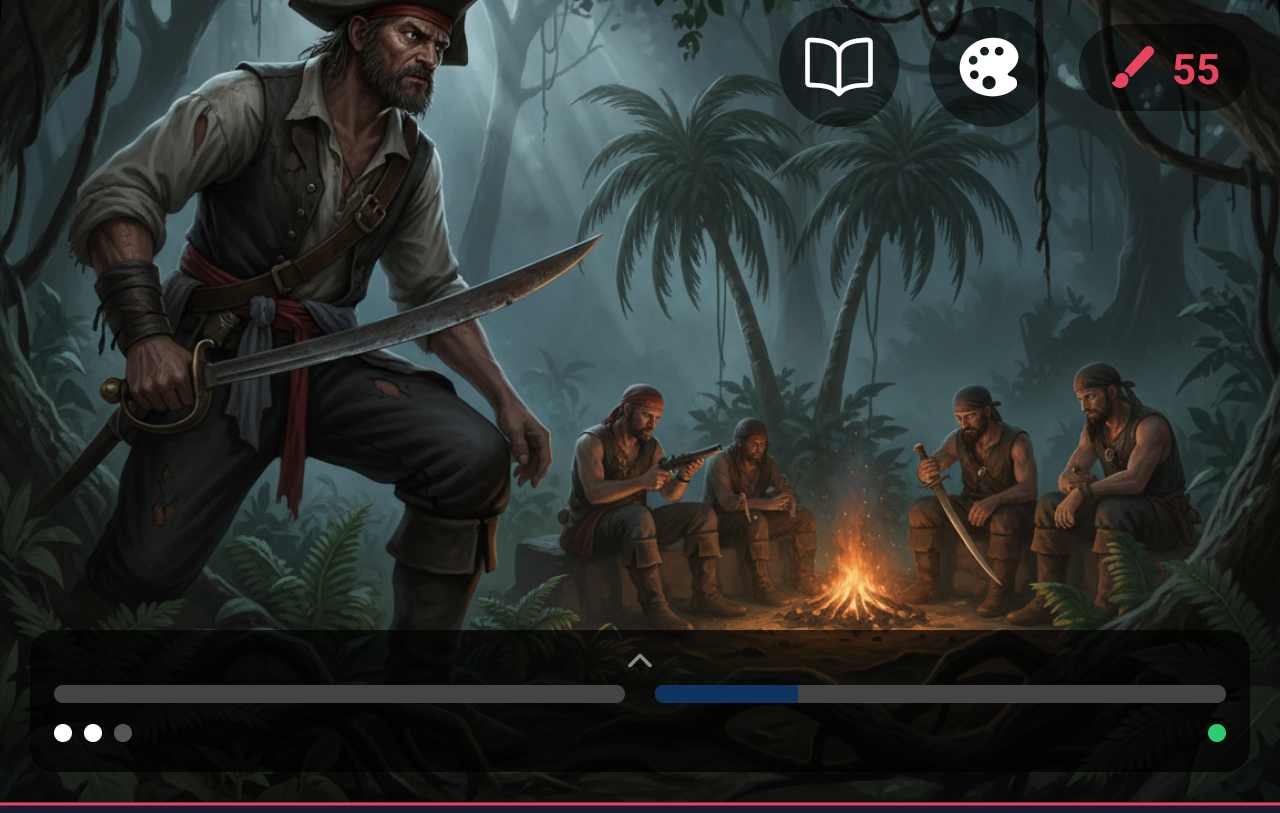
Interface Description
Top Right Controls
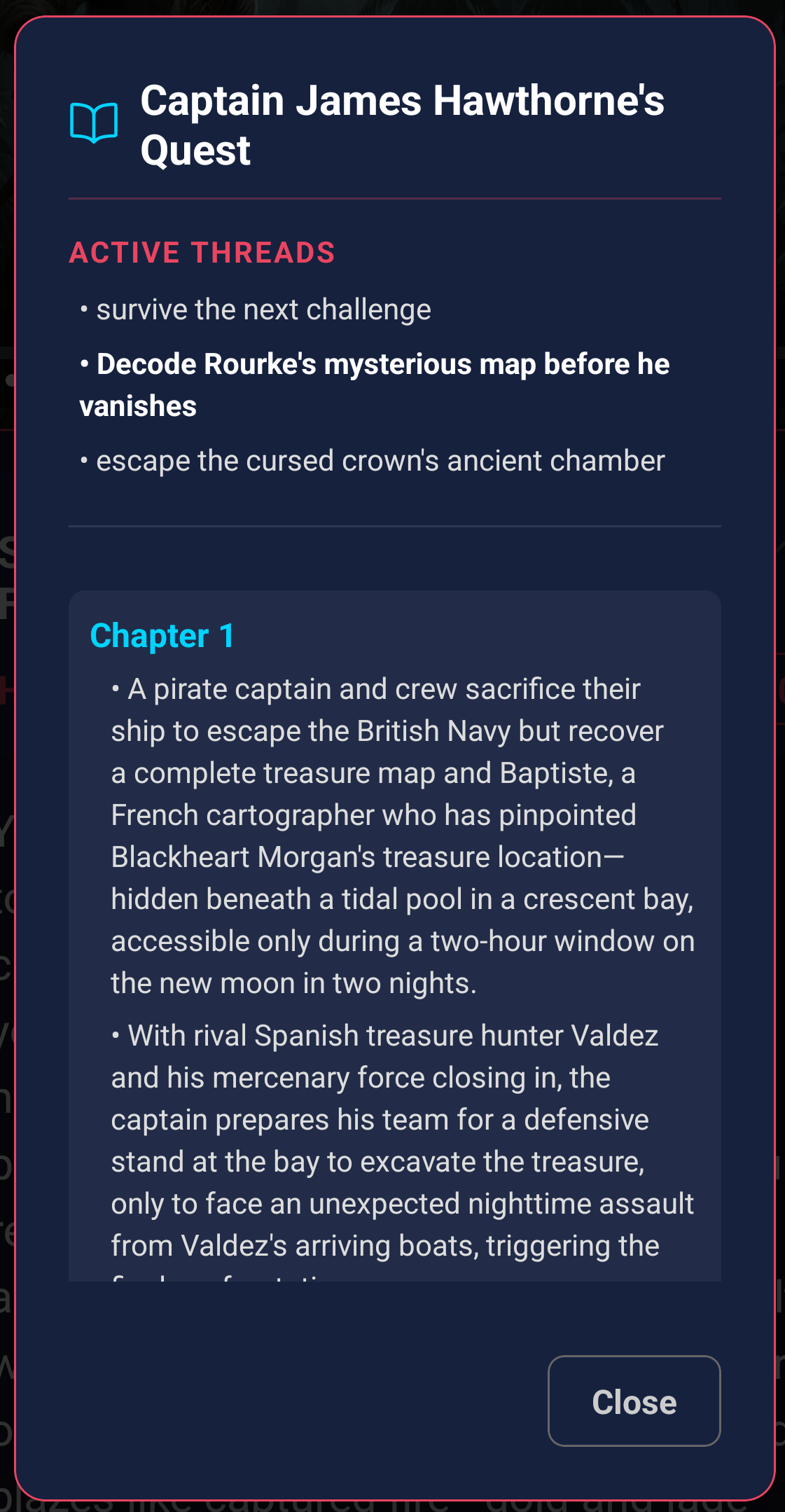
- Story History Button: Shows a review of past chapters, active threads, and completed threads (only shows from chapter 2 onwards).
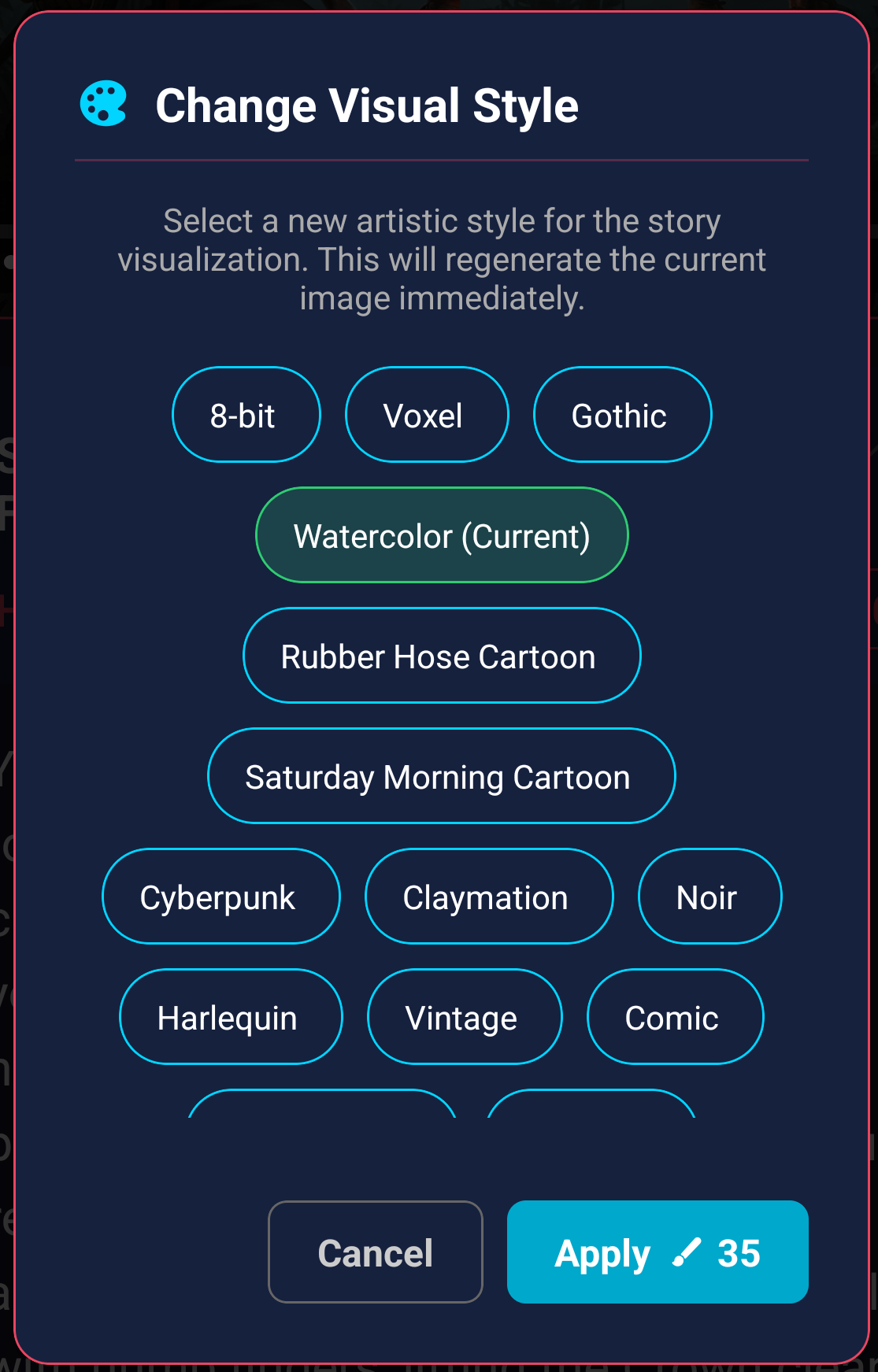
- Palette Button: Allows you to change visual style. If you change the visual style, the chapter image will be regenerated. This costs 35 ink.
- Ink Balance: Shows your account's ink balance. Clicking on your ink balance will give you an opportunity to purchase more ink.
Character Bar
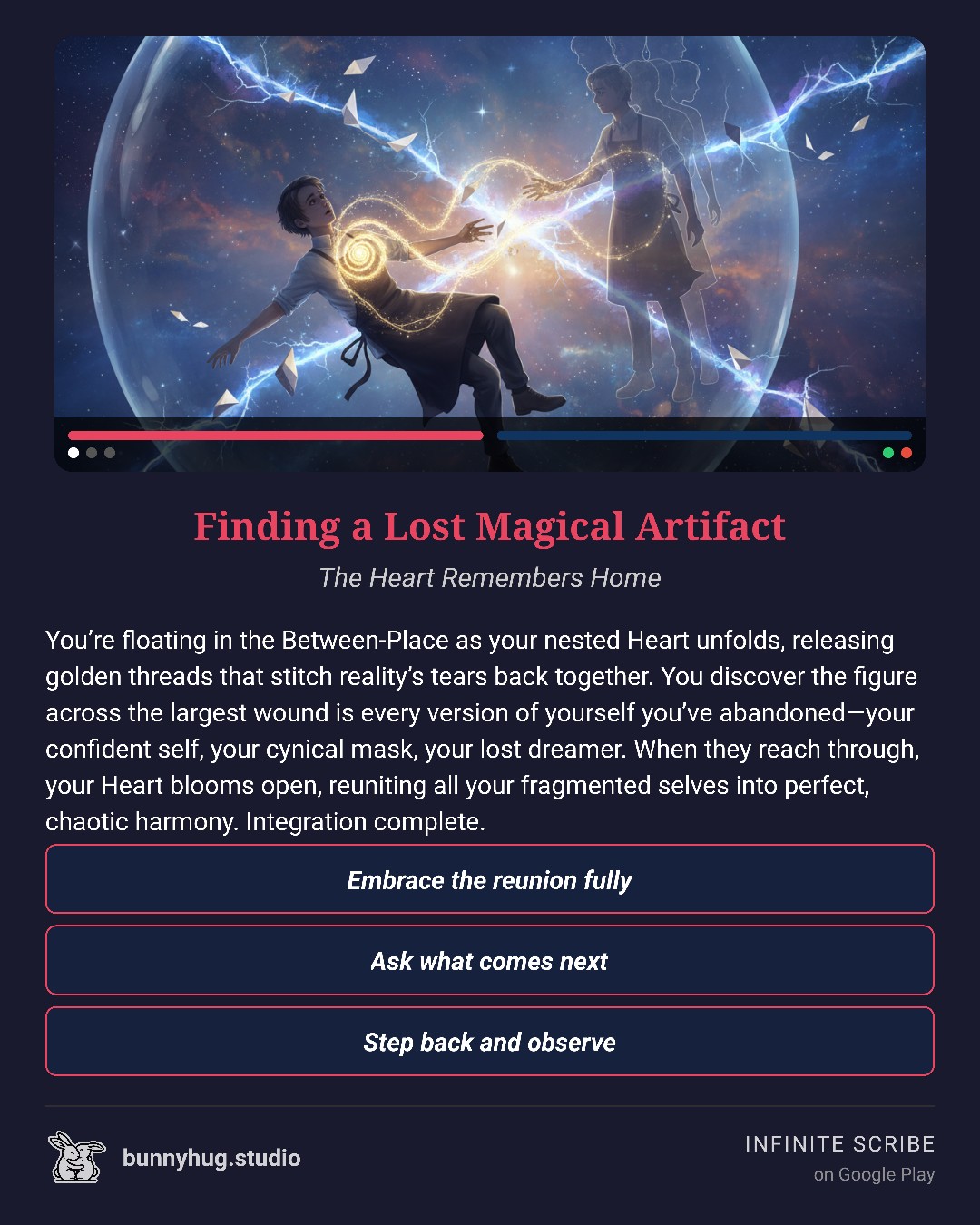
Minimized Character Bar:
- Red bar: Current & Max Health
- Blue bar: Current & Max Stamina
- White/Grey dots: Inventory
- Red/Green dots: Status Effects
You can click or drag up on the photo to expand the character bar.

Expanded Character Bar:
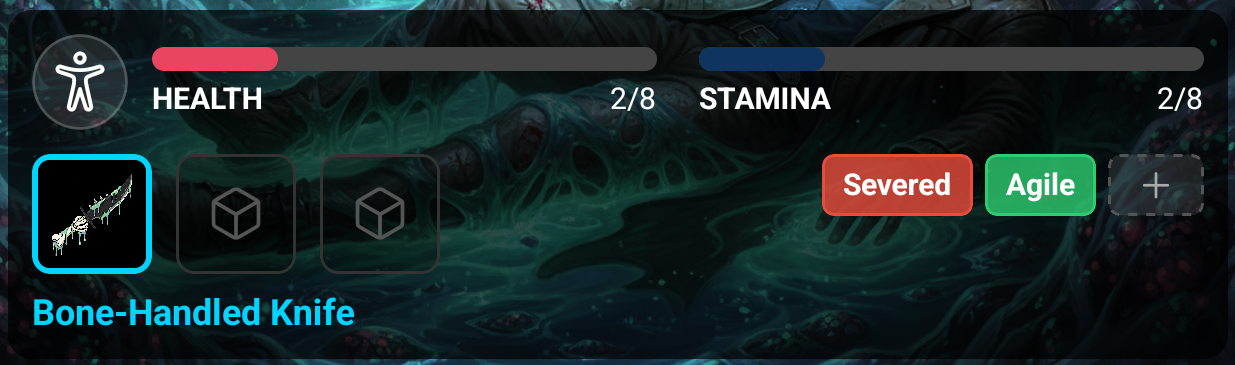
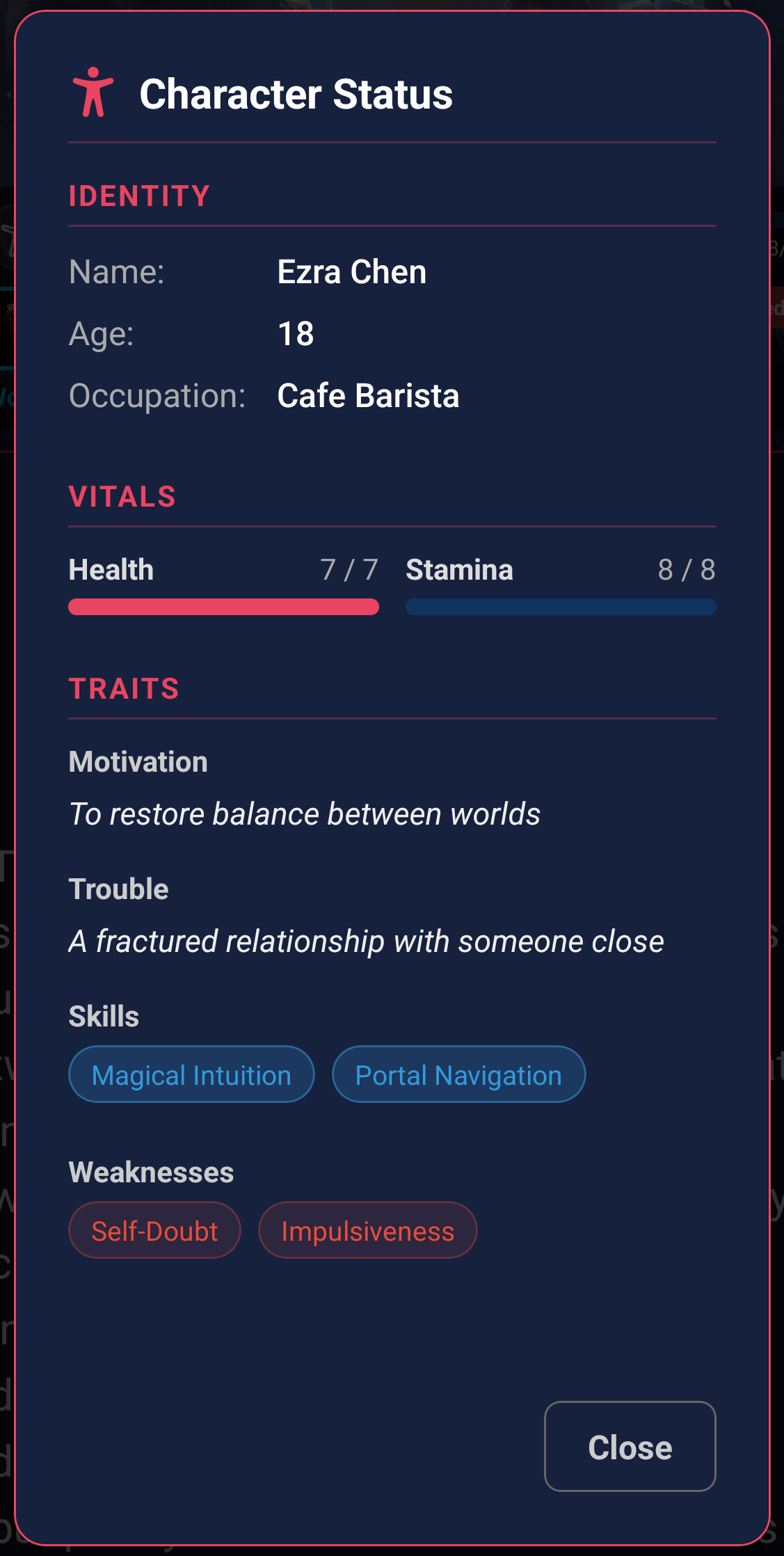
- Person Icon: Brings up character stats.
- Health and Stamina Bars: Shows how much health and stamina your character has.
- Inventory Icons: Allows you to select an inventory item to use with your next action. You can only gain one inventory item per chapter.
- Green / Red Labels: The good (green) and bad (red) status effects
currently applied to your character.
- Status effects last through two chapters, including the chapter it was gained.
- Status effects are gained through Great Success and Critical Failure roll results.
- You can only gain one good and one bad status effect each chapter.
- Plus Sign: Purchase a positive or negative status effect for 15 ink.
You can collapse the character bar by tapping or swiping down on the chapter image.
Narrative Text
Infinite Scribe will generate the narrative based on your story selections, character, and chosen actions.
You can increase or decrease the font size to make the narrative easier to read by pinching or zooming on your device.

Audio Playback
Click the Play Button to generate audio that reads each entry in the chapter. Each entry costs 7 ink to narrate.
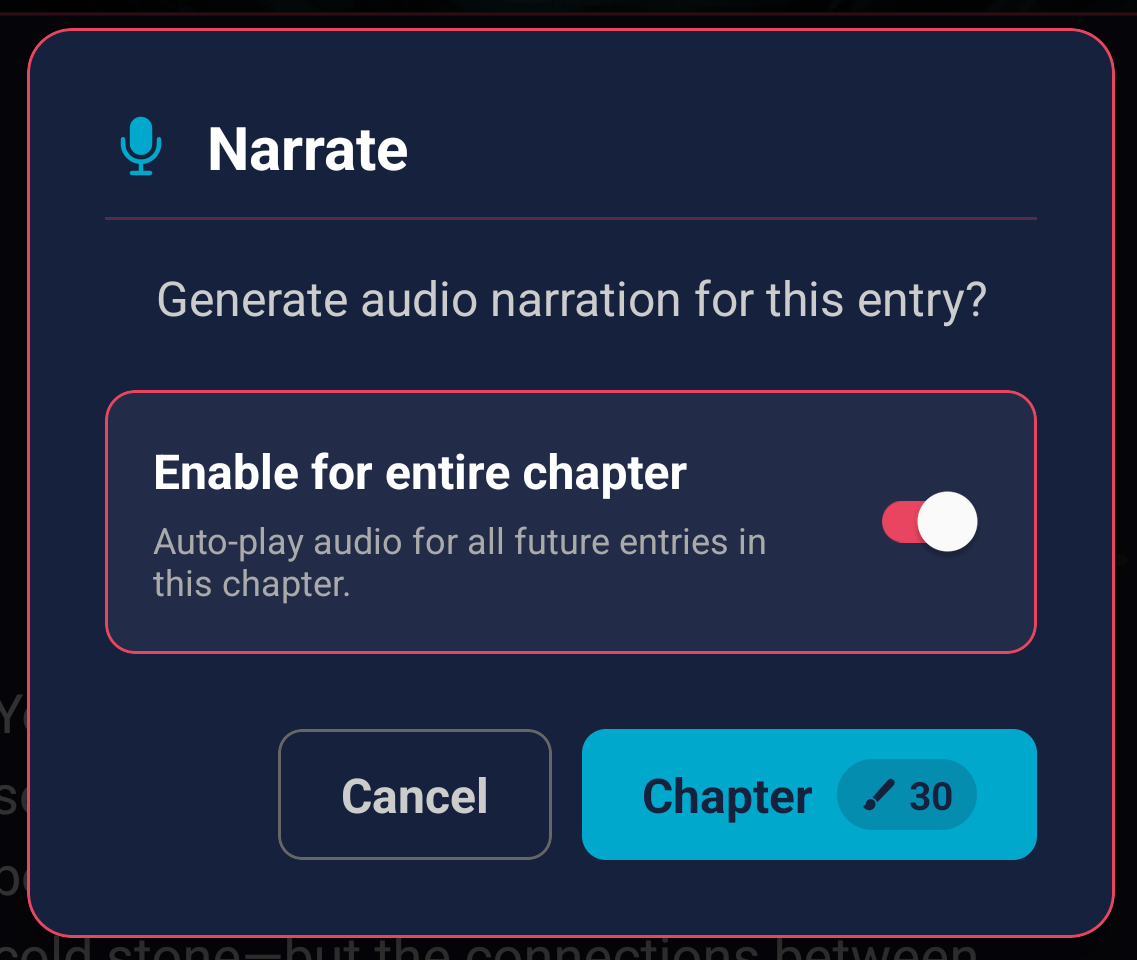
You can also choose to narrate an entire chapter by clicking the "Narrate Next Chapter" button at the end of a chapter, or the first play button of a new chapter. Both will cost an extra 30 ink.
Action Options
- Three options for your character to choose from to advance the story.
- You can click "Generate New Options" to generate alternative choices - this uses 5 ink.
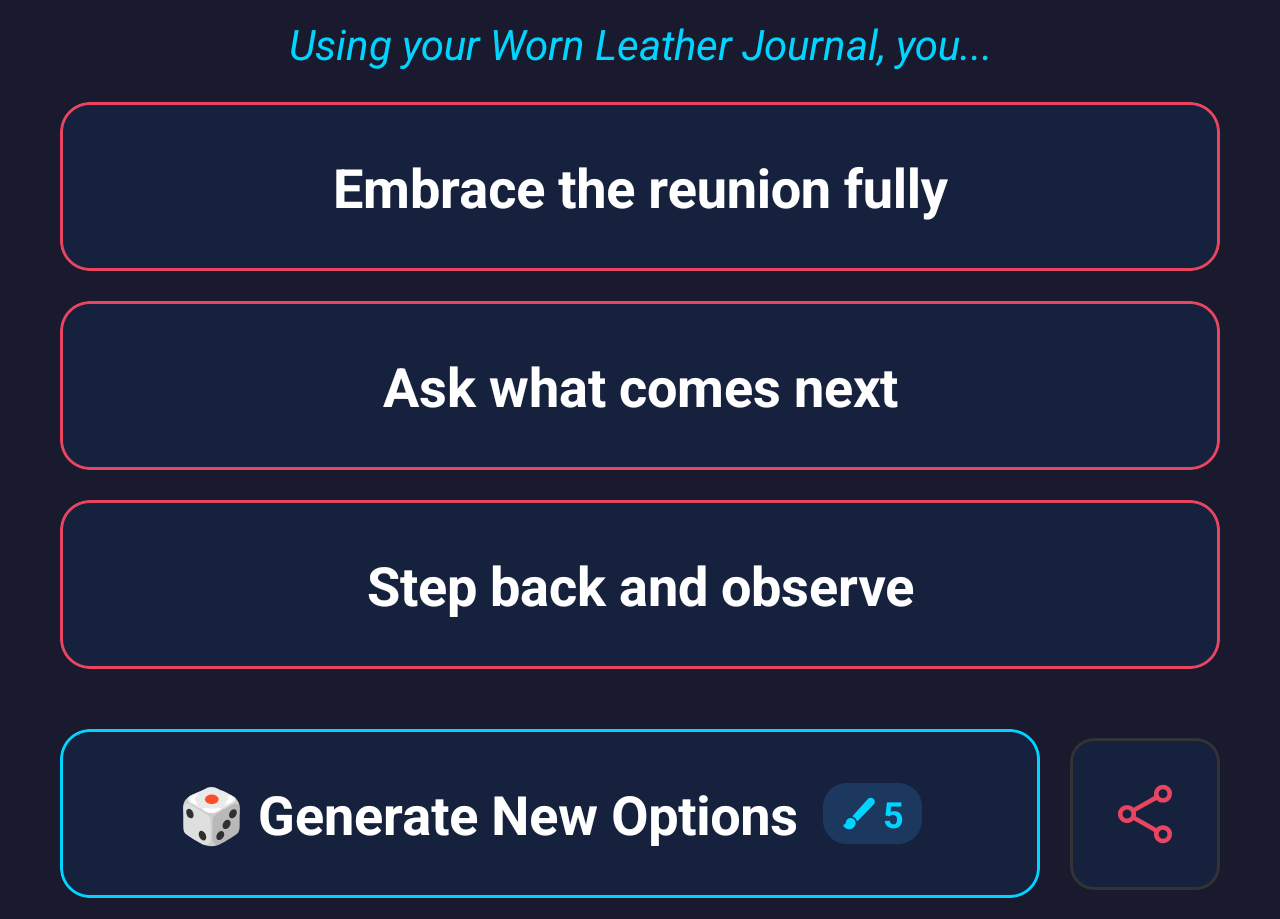
- Share Button: Create a share that has the chapter image, a summary of the most recent narrative, and the three options to choose from.
Gameplay
Action Result
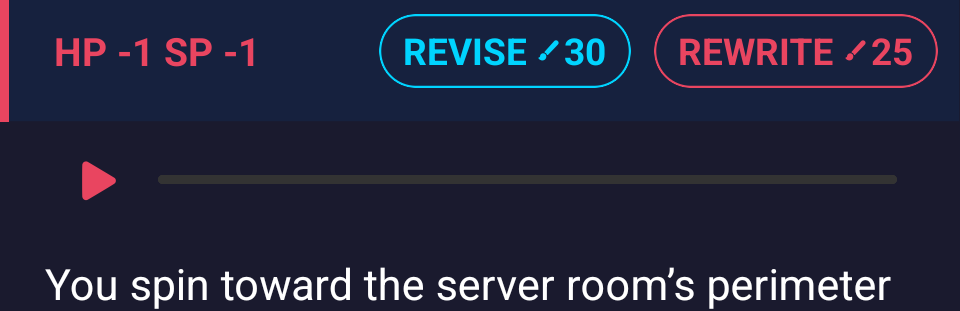
The action result div shows your selection, and then after the result is generated, whether it succeeded or failed. It also shows any health (HP) or stamina (SP) gains or losses, and (if the result wasn't already a great success) presents with the Reroll Fate option.
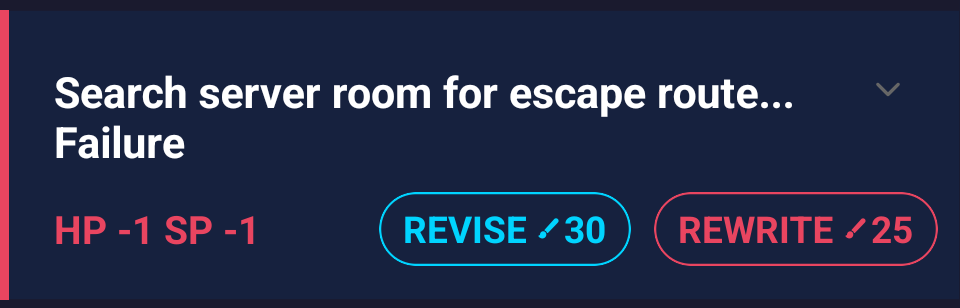
You can expand the div to show a more detailed account of the action resolution:
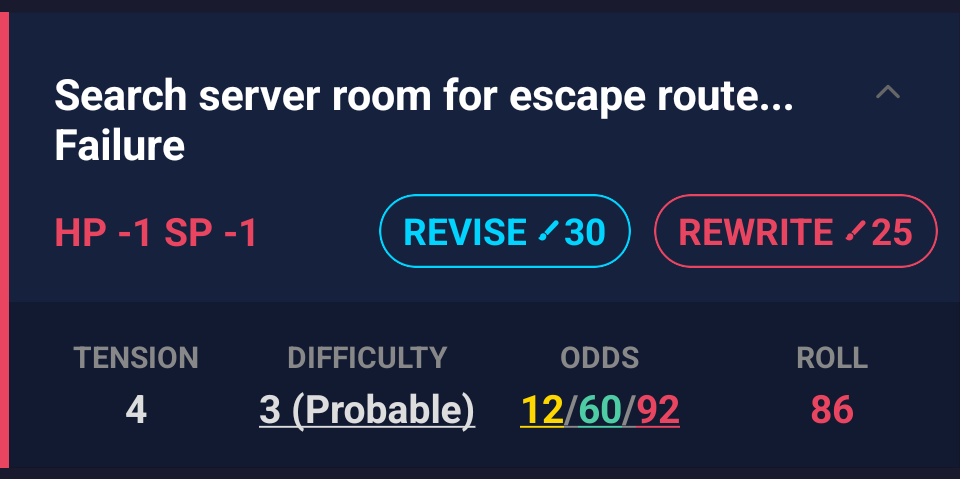
- Tension: Each chapter has a tension that goes up and down as the story progresses. This is taken into account when calculating the odds of success of each of your character's actions.
- Difficulty: An analysis of the chance of success of your character
completing the selected action. You can click on the difficulty score to see a detailed
breakdown of the reasoning used.
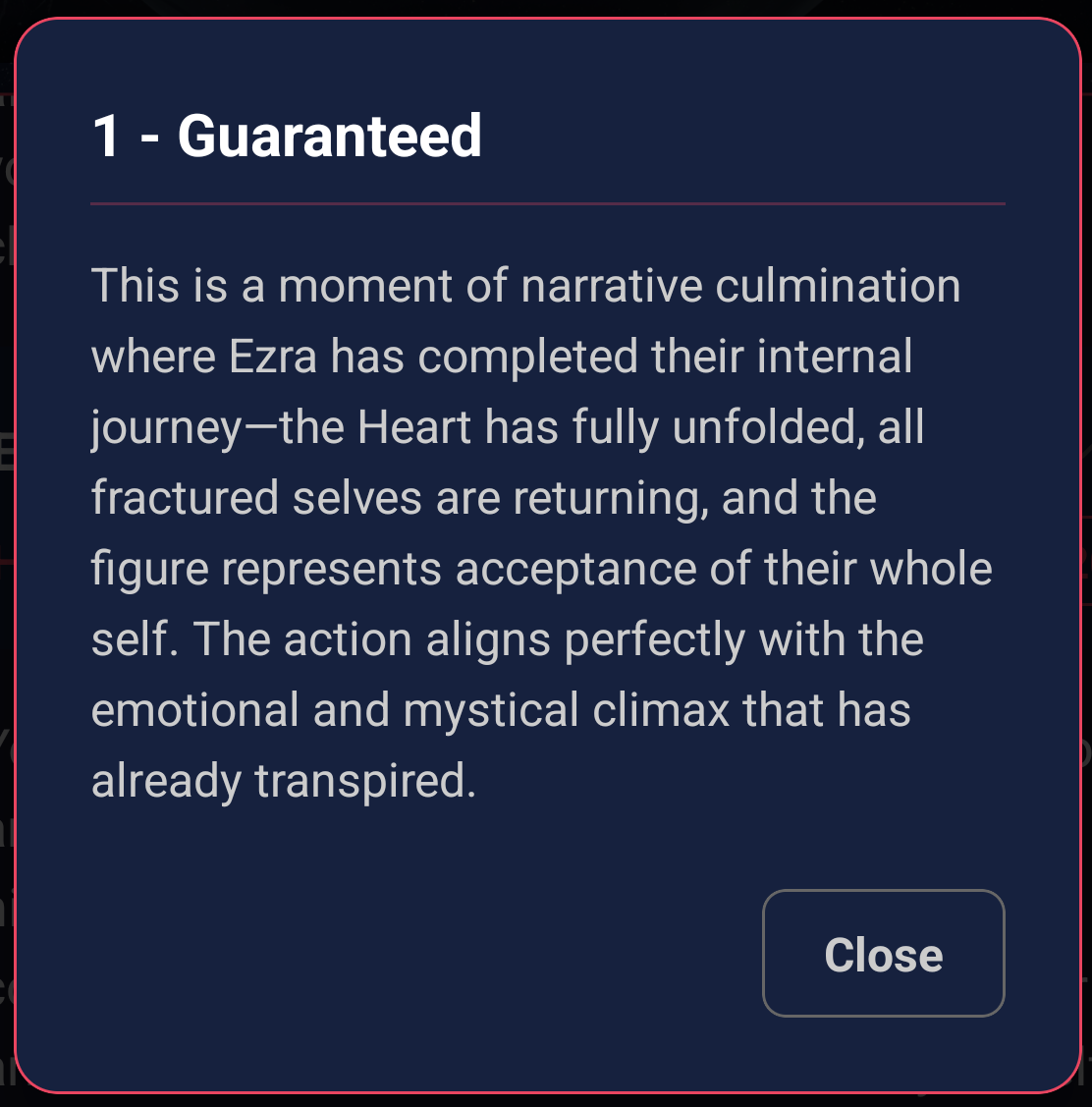
Difficulty can be affected by your character's health, stamina, selected inventory item, and both positive and negative status effects.
- Odds: Using difficulty and tension, we calculate the odds of the action
succeeding. To explain the odds, if the odds were 9/45/70:
- Rolling between 1 and 9 would result in a "great success"
- Rolling between 10 and 45 would result in a "success"
- Rolling between 46 and 70 would result in a "failure"
- Rolling between 71 and 100 would result in a "critical failure"
You can tap on the odds to see a dialog explaining this breakdown.
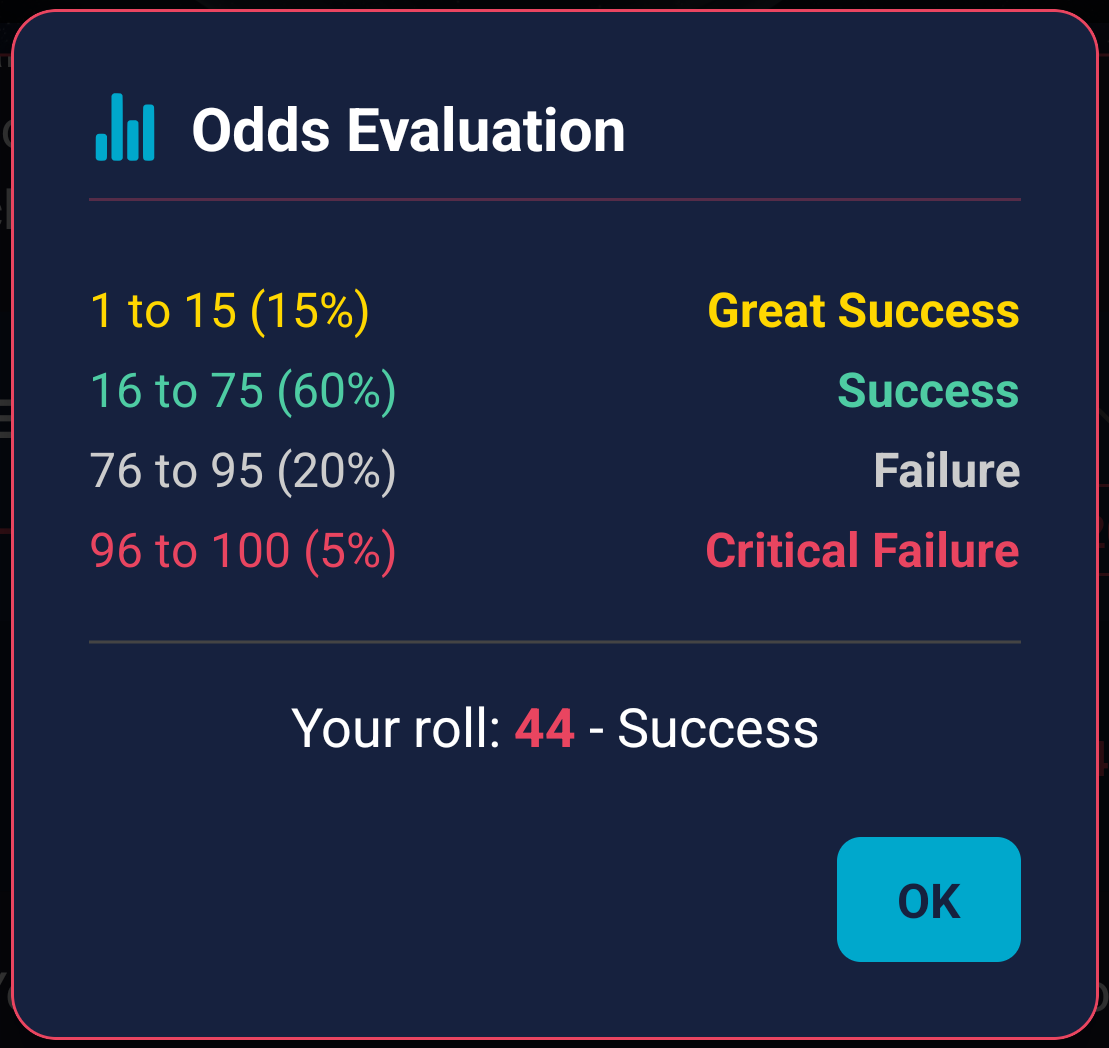
- Roll: The random number (from 1 to 100) used to determine the result.
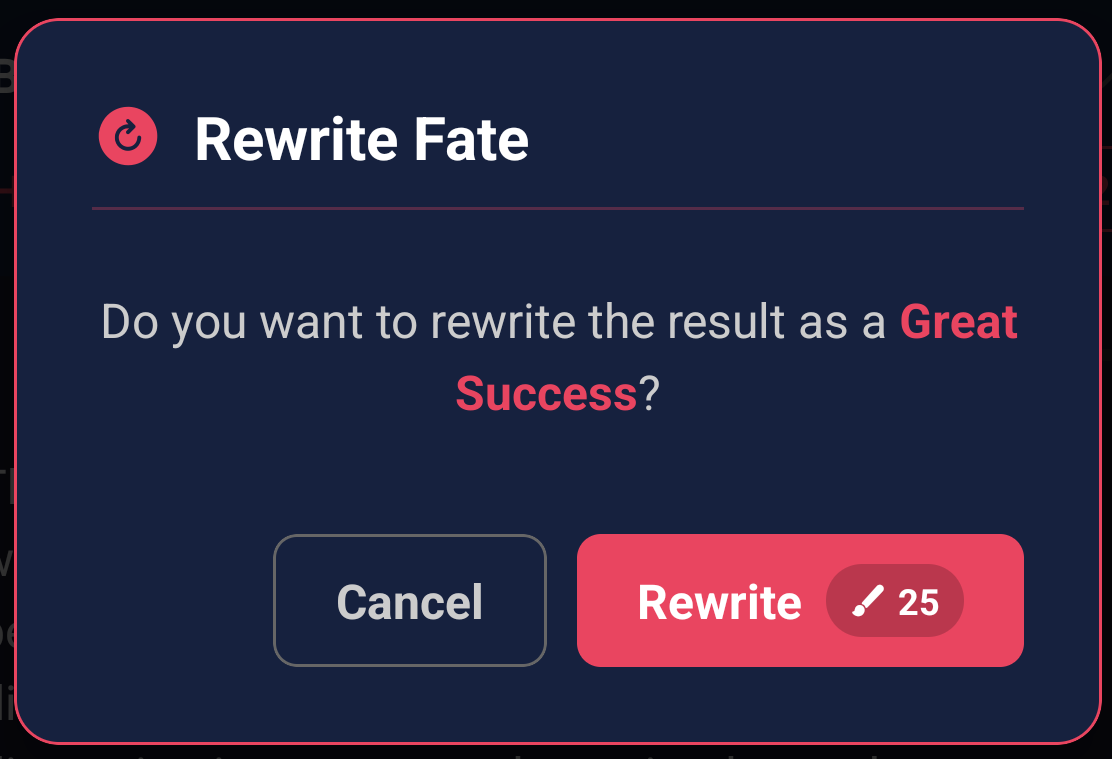
- Rewrite Fate: Regenerate the last entry, but force the roll to be a
"Great Success" result. This costs 25 ink.
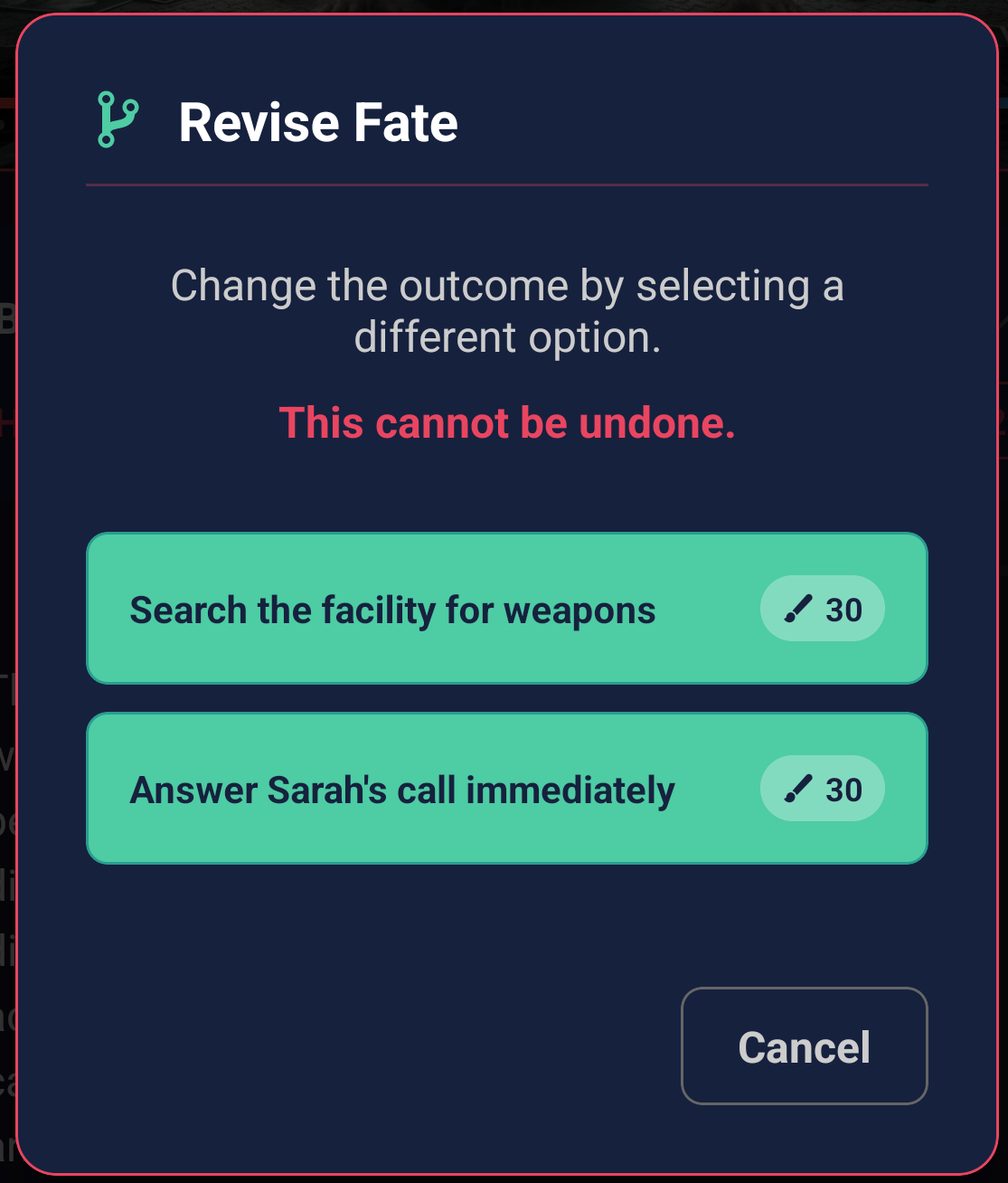
- Revise Fate: Regenerate the last entry as if you had selected one of
the other two options from the previous entry. This costs 30 ink.
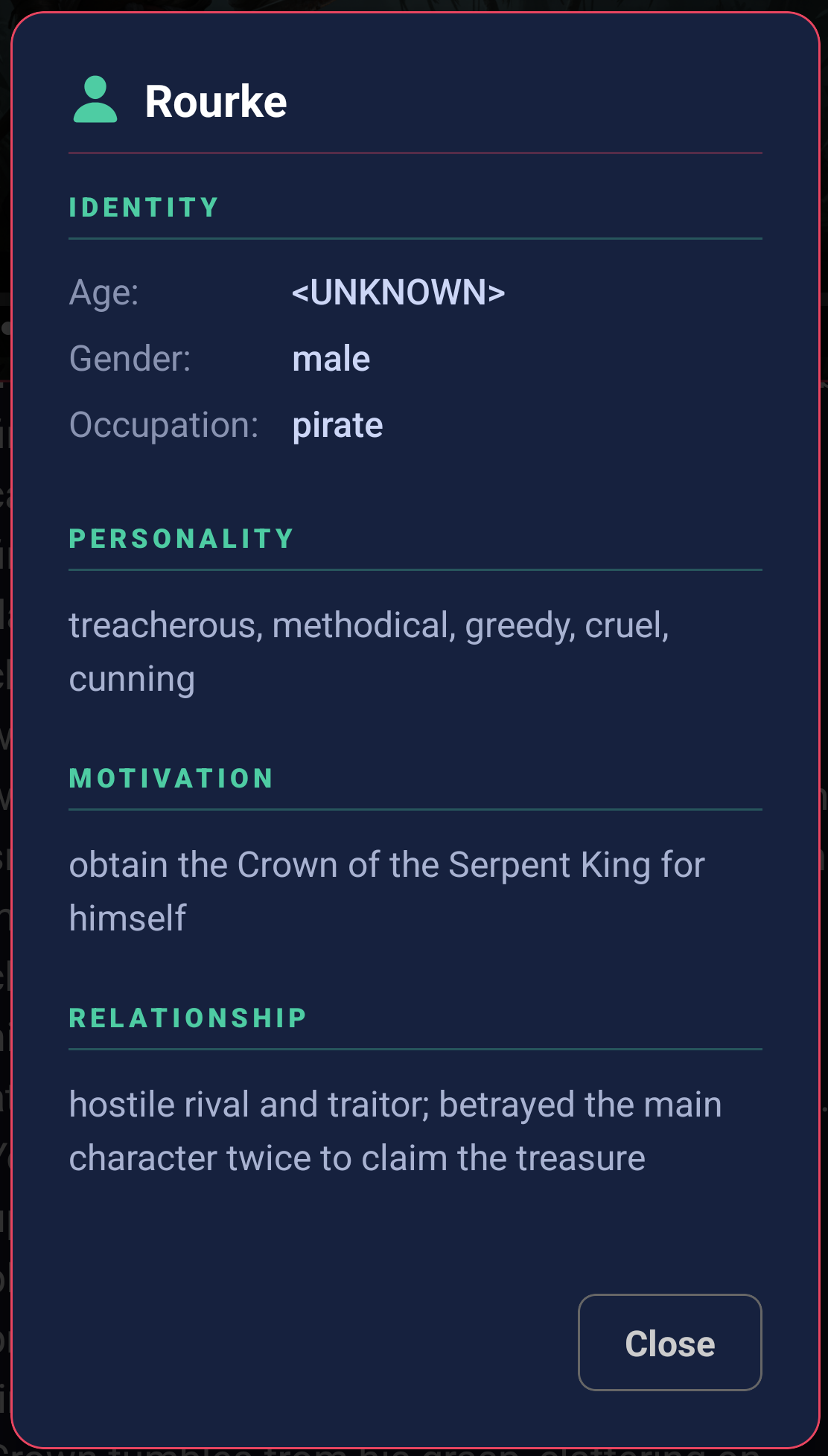
Character Profiles
As the story progresses, characters will develop their own profiles within your story. You can view the character's profile by clicking on their highlighted name within the narrative text.
Story Threads
As the story progresses, up to three "story threads" can recorded between chapters based on the chapter's events.
- Active story threads can be viewed at the top of the story history dialog.
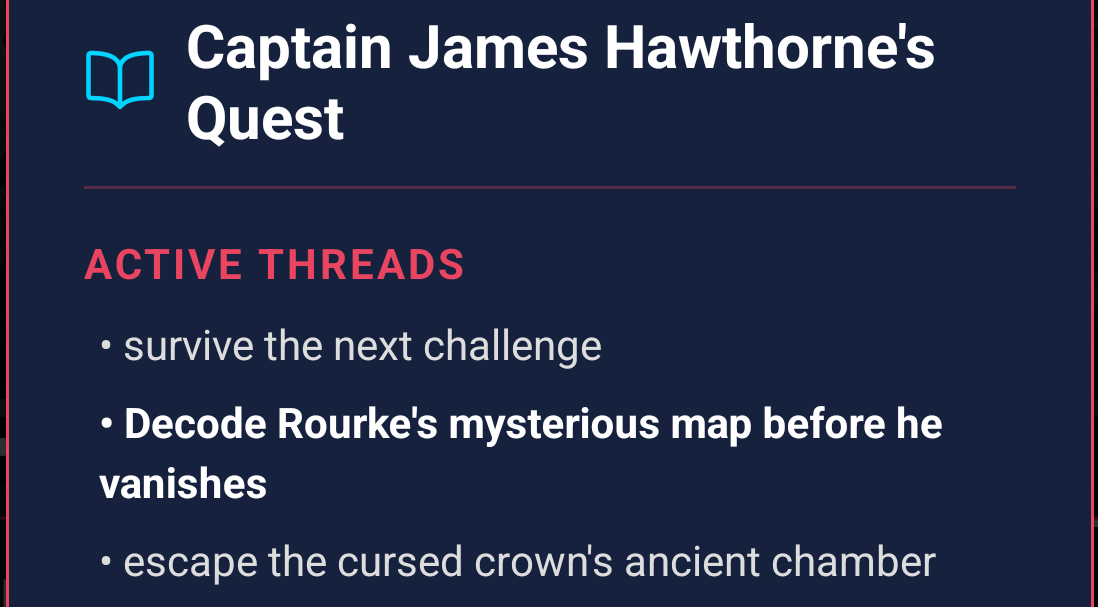
- A story thread can be focused for up to 6 chapters.
- When a story thread is featured in its 3rd chapter, it will be a primary focus of the chapter.
- When a story thread is featured in its 6th chapter, it will be the "finale" of the thread, and come to a close at the end of the chapter.
- After a finale, your character will gain a new skill and a new weakness based on the story thread.
- Completed story threads can be viewed at the bottom of the story history dialog.
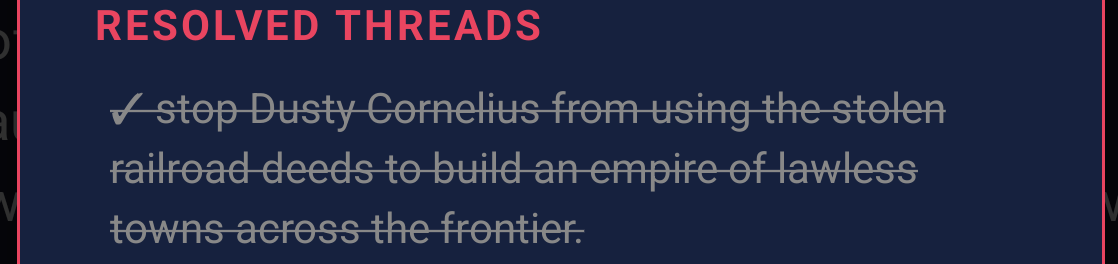
Random Events
There are low odds at the start of each chapter as well as the result of every action for a random event to occur; these odds slightly improve or decrease in relation to the chapter's tension level. When a random event occurs, a lightning bolt emoji will appear as the first character of the entry.

Chapter End
- The chapter ends once we have at least 4 total successes or failures.
- Infinite Scribe will generate the ending of your chapter, which may be affected by your character having 0 health or stamina.
- Starting the next chapter of your story will cost 50 ink, or you can narrate the next chapter for 80 ink.
Starting a New Chapter
- If your character ended the previous chapter with 0 health or stamina, they will have recovered most of their health or stamina at the beginning of the next chapter.
- Otherwise, your character will recover two points of health and stamina at the start of the next chapter.
- Status effects on your character that are older than two chapters will be removed at the start of the next chapter.
- If the prior chapter had more successes than failures, the chapter tension will increase by one; if it had more failures than successes, the tension will decrease by one.
3. Story Management
On the story list screen, you can:
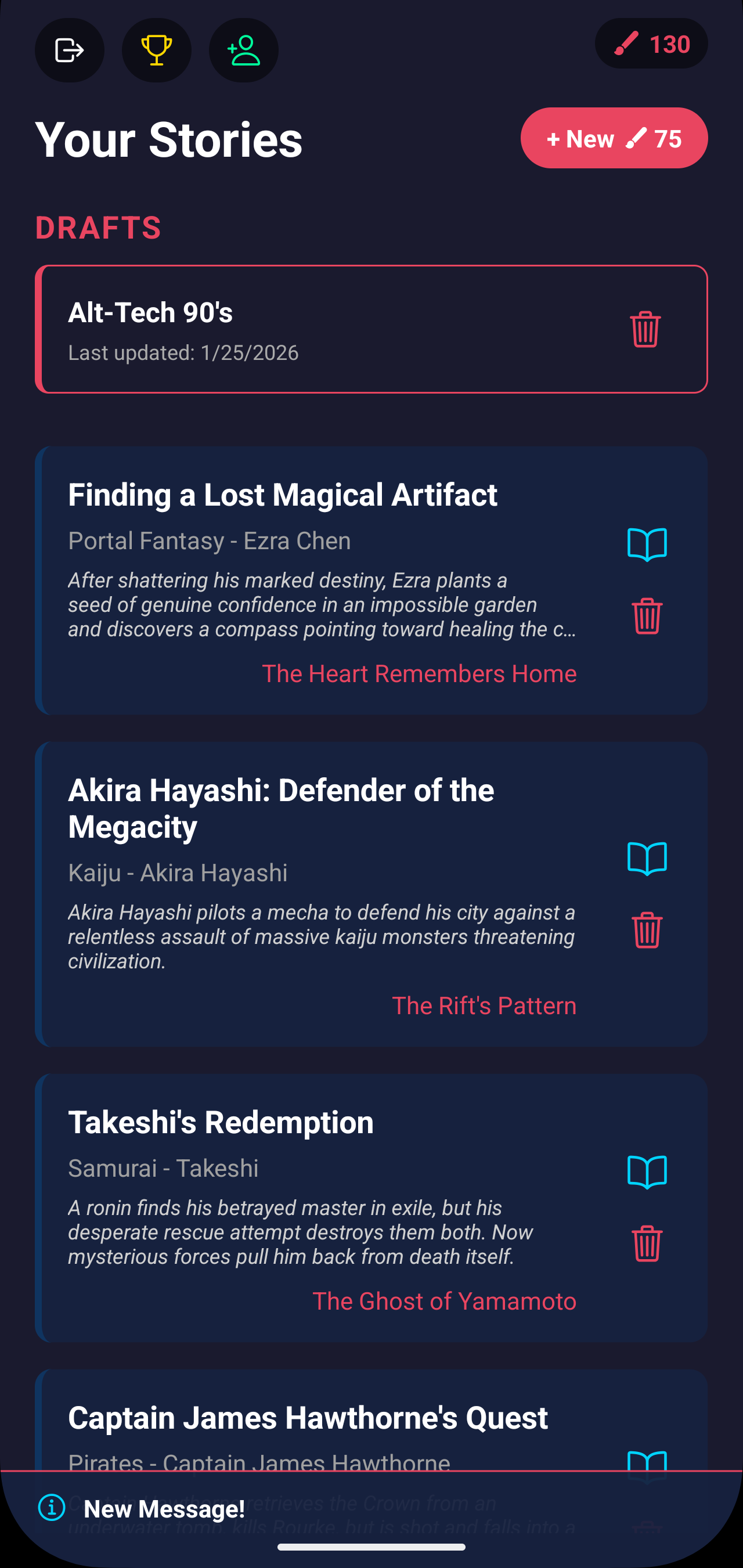
- Create a new story: This starts the story creation process to create a new, separate story. This will cost 75 ink, but includes the price of the first chapter of the new story.
- View drafts: Stories that you started creating but didn't finish will show up at the top of the list; you can either continue or delete them. Deleting a draft will refund 50 ink.
- View a list of stories: All the stories you've created will appear here; clicking into one will go to the current chapter's most recently generated narrative.
- View the history of a story: Clicking the book icon next to a story will bring up a dialog recapping the past chapters of that story.
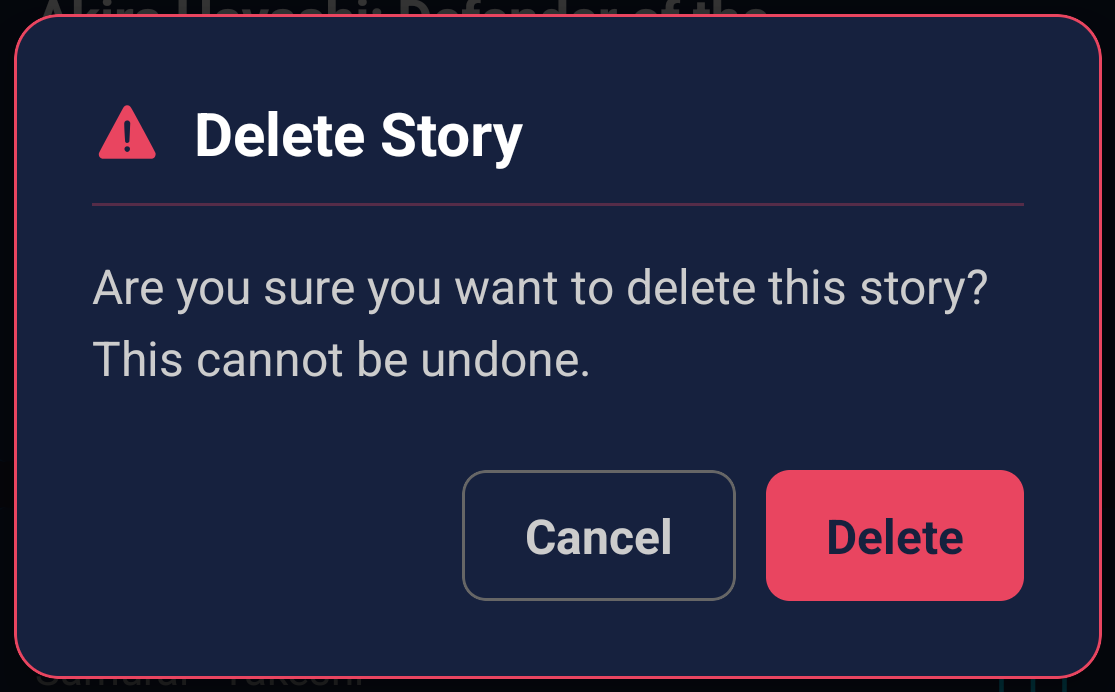
- Delete a story: This will show a confirmation prompt, asking if you're sure
you want to delete the story. This action is permanent and cannot be undone - no ink will be
refunded.
- View announcements: The most recent announcement will show at the bottom of the screen; tap into it to view more details.
- Purchase more ink: By tapping on your ink balance on the top right.
- View achievements: By tapping on the gold trophy button on the top left.
- Refer a friend: To Infinite Scribe (earning both of you free ink!) by tapping on the Add User button on the top left.
- Log out: Of the game by clicking on the Log Out button in the top left.
4. Achievements
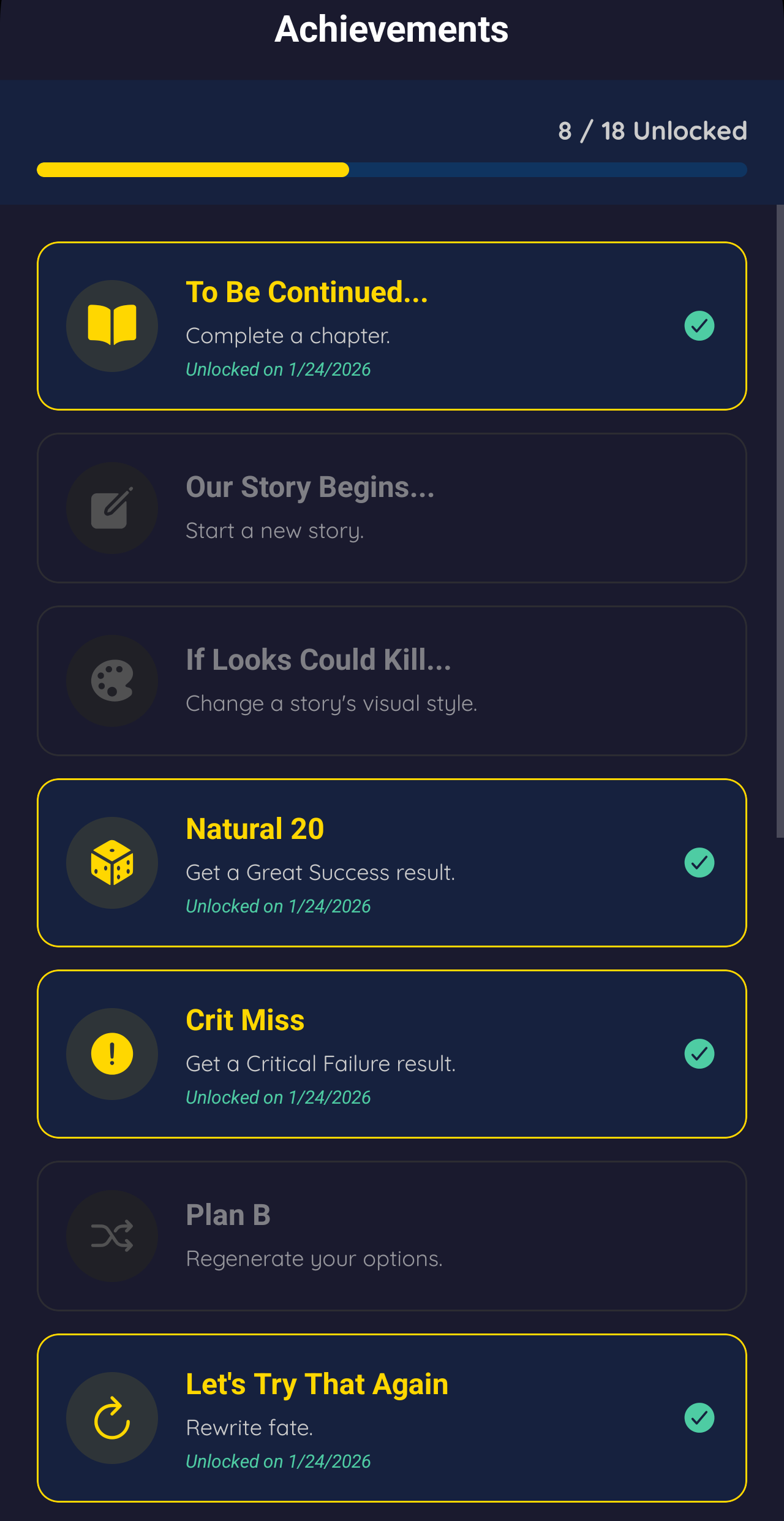
As you play Infinite Scribe you can unlock achievements! The Achievements page (accessible from the story list screen) will outline which achievements you've accomplished as well as ones you have yet to unlock. Check back often as we add more achievements!
6. Refer a Friend
On the Refer a Friend dialog you can see your referral code; if a friend installs Infinite Scribe, enters your referral code, and completes a chapter, both of you will gain 50 free ink!
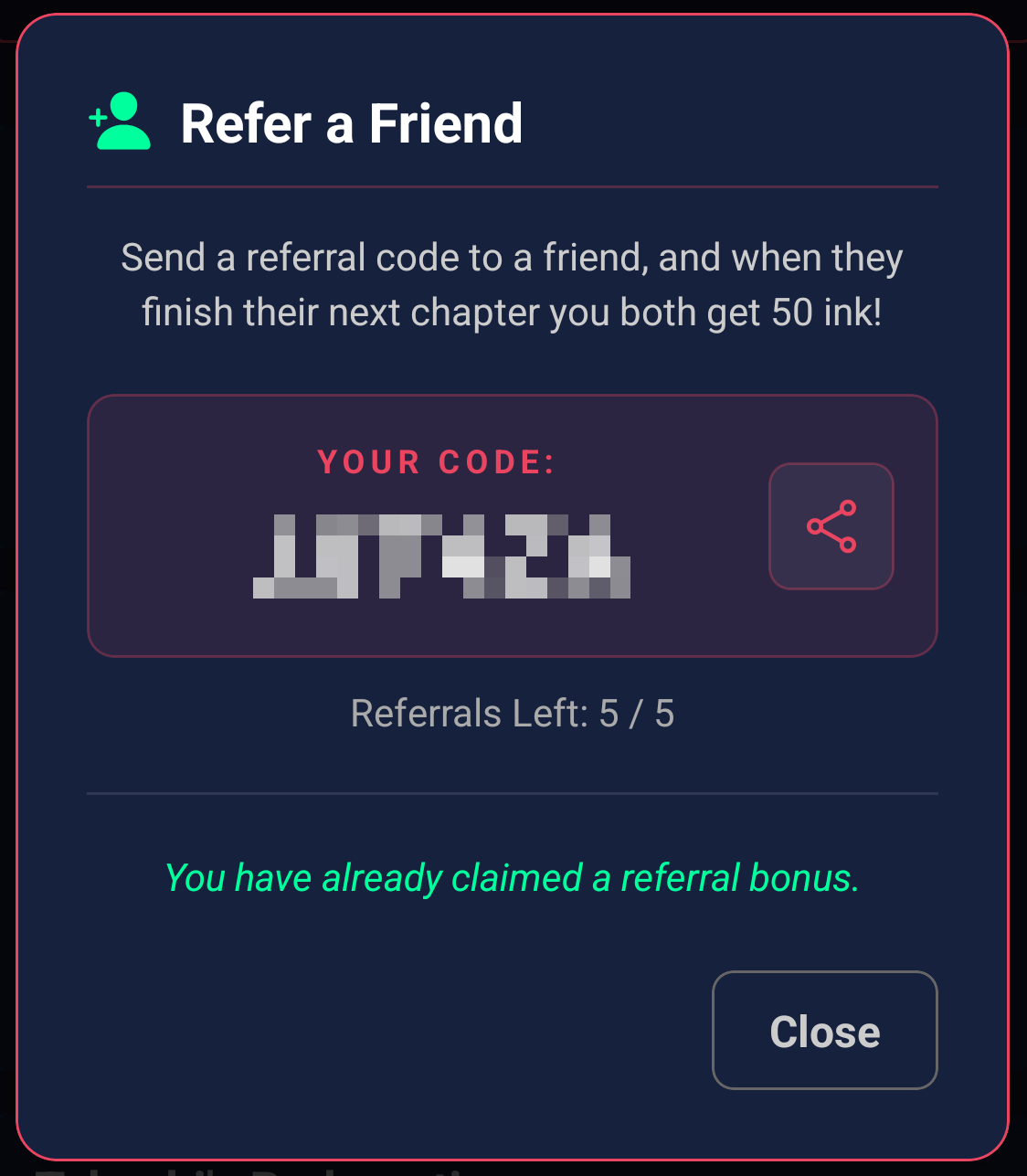
- You can only gain referral ink from 5 other players.
- You can also enter someone else's referral code in this dialog, and once you complete a chapter you and your friend will receive 50 free ink!
- You can only do this once.